Tutorial 2 of 6
Triage findings — status, owners, due dates and reminders
Beginner 8 min
Work through the findings register like a security team: filter and sort, read a finding, set status, owner and due date, mark accepted risks and export calendar reminders.
The Findings tab merges what all tools found into one register: vulnerabilities from the SBOM Explorer and the Dependency Vulnerability Explorer, licence conflicts, container and web configuration issues, missing build provenance, OAuth permission risks and Content Credentials problems.
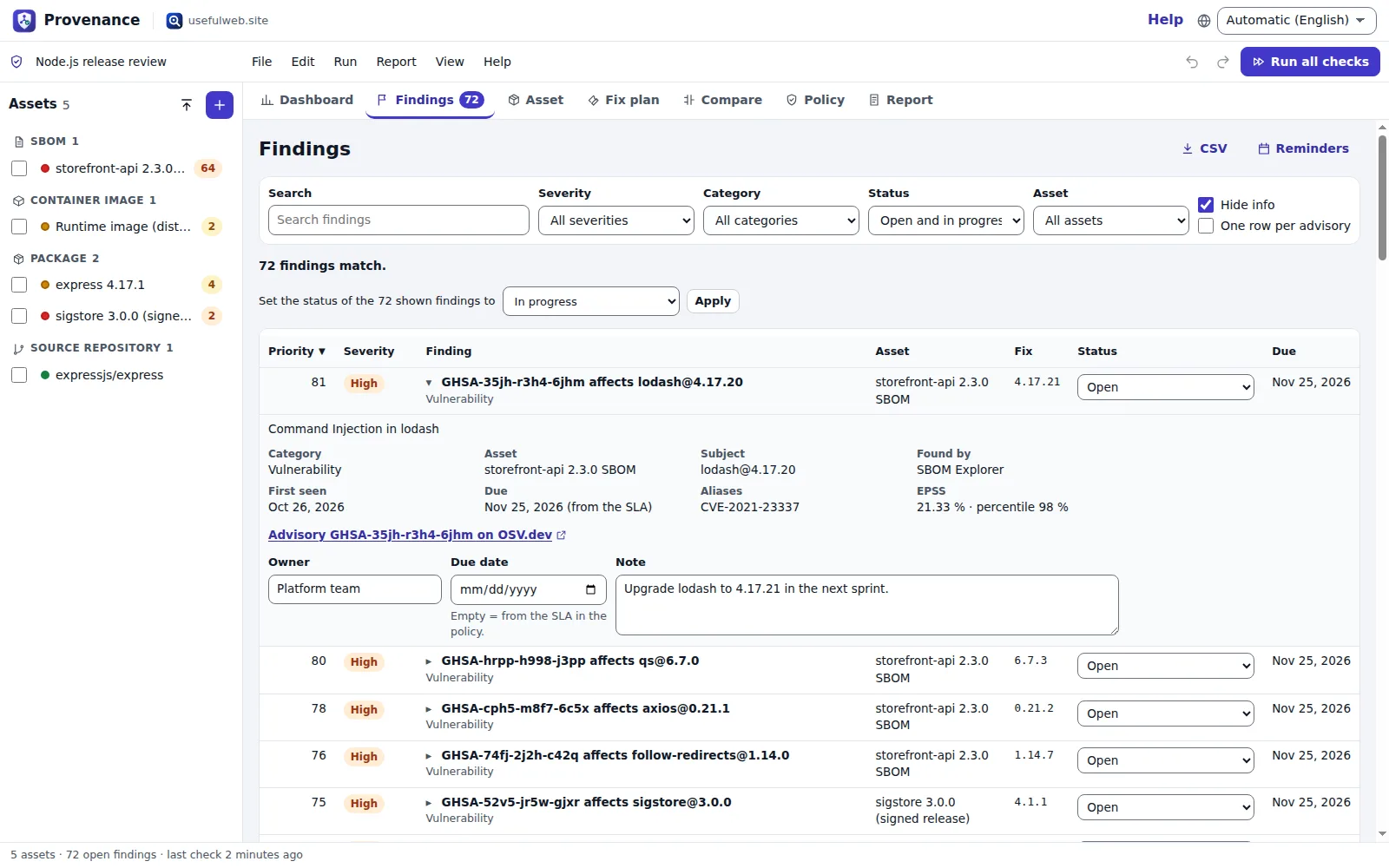
1. Filter and sort
The filter bar narrows the list by Severity, Category, Status and Asset, and Search looks through titles, components, advisory ids and aliases, notes and owners. Press / anywhere to jump to the search field.
- Hide info (on by default) hides informational findings such as newer major versions of direct dependencies.
- One row per advisory collapses the same CVE across assets into one row with every affected asset — useful when one library sits in several services.
Click a column header to sort; click again to reverse. The default order is Priority: severity base (critical 100, high 75, medium 45, unrated 35, low 20) plus 40 for CISA KEV and up to 30 from EPSS.
2. Open a finding
Click a finding title. The details show the advisory summary, the asset and component, which tool found it, the first time it was seen, aliases (CVE ids), KEV and EPSS when enriched, and a link to the advisory on OSV.dev.
3. Decide
Each row has a Status:
| Status | Use it when |
|---|---|
| Open | Nobody is working on it yet |
| In progress | Someone is fixing it |
| Risk accepted | You decided to live with it (the release gate ignores it) |
| False positive | The finding does not apply (the gate ignores it) |
| Fixed (awaiting re-check) | You shipped a fix; the next run confirms it |
In the details, set an Owner, a Due date and a Note (for example why a risk was accepted). Without a due date, Provenance uses the SLA from the Policy tab: first seen + 7 days for critical, 30 for high, 90 for medium, 180 for low.
To change many findings at once, filter them, then use Set the status of the shown findings to … Apply. Undo (Ctrl+Z) reverts it.
4. Reminders in your calendar
Press Reminders (or Report → Download due-date reminders (.ics)). The file has one all-day event per due date listing the open findings due that day, with an alarm the day before. Import it into Google Calendar, Outlook or Apple Calendar.
5. Export
CSV downloads the register for a spreadsheet or ticket import; Report → Download findings (JSON) gives the same data for scripts. Both include priority, status, owner, first-seen and due dates.
Ready to try it?